🚀 Game Information
Before starting the labs, make sure to join the game using the link and code below:
- 🔗 Game Link: The Arcade Base Camp December 2025
- 🔑 Access Code: 1q-basecamp-13219
*Copy the Access Code, click the Link, and paste the code to enter the game.
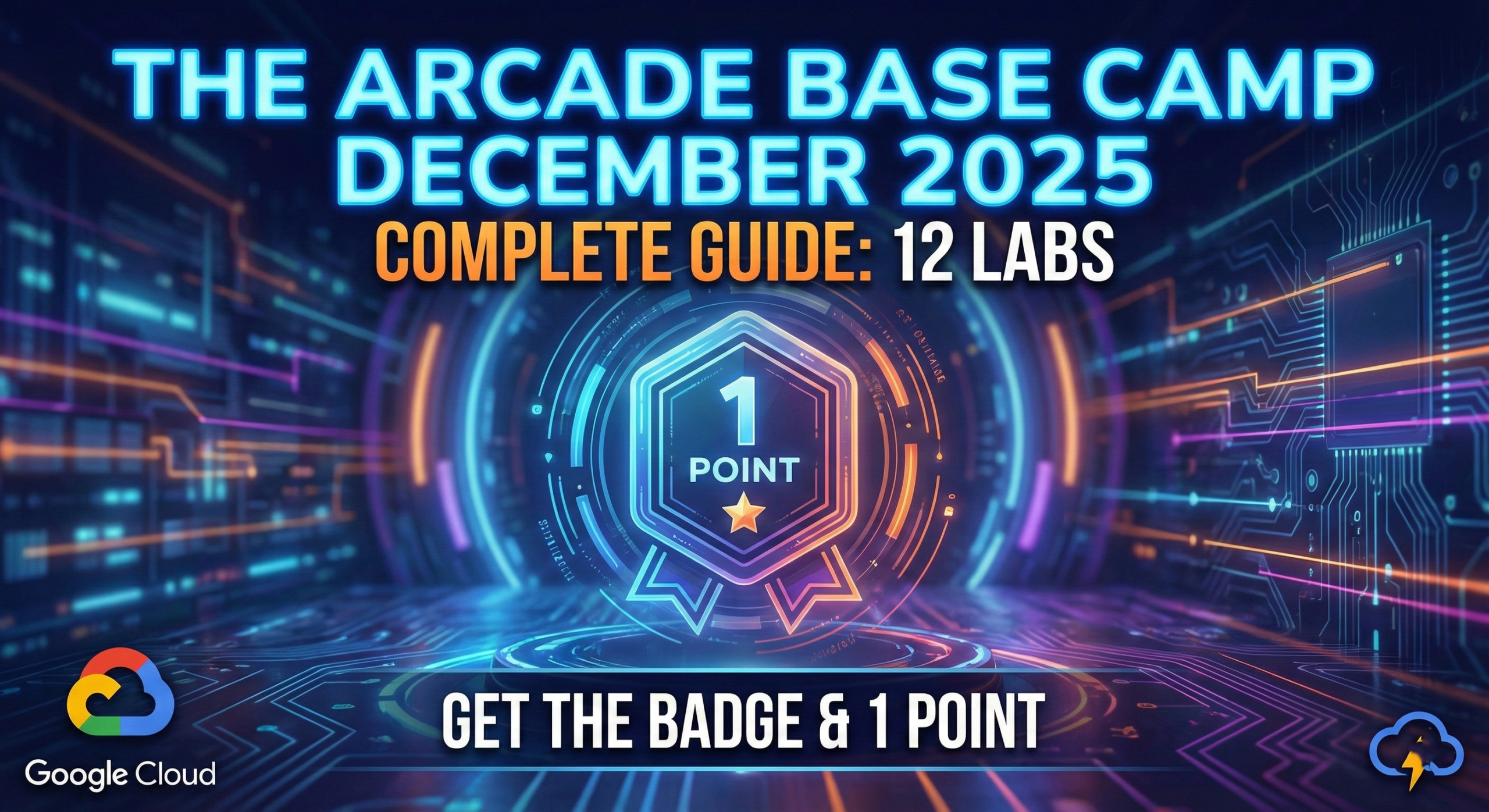
Welcome back to the channel! In this guide, we are going to conquer The Arcade Base Camp December 2025. This challenge consists of 12 labs split into two sections: “Welcome to Base Camp” and “Level Up.”
Completing this will earn you the Base Camp Badge, which equals 1 Arcade Point towards your prize collection. Instead of manually clicking through the Google Cloud Console, I have prepared Cheat Sheet codes for Cloud Shell that will help you finish these labs in record time.
Let’s dive in!
PART 1: WELCOME TO BASE CAMP (7 Labs)
Note: The first few labs (A Tour of Google Cloud, etc.) are very basic. We will focus on the labs that require configuration.
Lab 1: Creating a Virtual Machine
Goal: Create a Compute Engine instance.
- Open Cloud Shell.
- Run the following command:
gcloud compute instances create gcelab \
  --zone=us-central1-c \
  --machine-type=e2-medium \
  --image-project=debian-cloud \
  --image-family=debian-11
3. Click Check my progress.
Lab 2: Compute Engine: Qwik Start – Windows
Goal: Create a Windows Server instance.
- Open Cloud Shell.
- Run the following command (wait 1-2 minutes for it to complete):
gcloud compute instances create instance-1 \
  --zone=us-central1-a \
  --machine-type=e2-standard-2 \
  --image-project=windows-cloud \
  --image-family=windows-2019
3. Click Check my progress.
Lab 3: Getting Started with Cloud Shell and gcloud
Goal: Configure environment variables and create a file via CLI.
- Run these commands in Cloud Shell:
# Set default region
gcloud config set compute/region us-central1

# Create required folder and file
mkdir temporary-folder
cd temporary-folder
cat > my-file.txt <
2. Click Check my progress.
Lab 4: Kubernetes Engine: Qwik Start
Goal: Create a cluster and deploy a container.
- Run this block in Cloud Shell:
# Set Zone
gcloud config set compute/zone us-central1-a
# Create Cluster (This takes 3-5 minutes)
gcloud container clusters create my-cluster
# Get Credentials
gcloud container clusters get-credentials my-cluster
# Deploy App
kubectl create deployment hello-server --image=gcr.io/google-samples/hello-app:1.0
# Expose via Load Balancer
kubectl expose deployment hello-server --type=LoadBalancer --port 8080
2. Wait for the External IP to be assigned.
3. Click Check my progress.
4. (Optional) Run gcloud container clusters delete my-cluster --quiet to finish the last task.
Lab 5: Set Up Network and HTTP Load Balancers (Advanced)
Goal: Setup an HTTP Load Balancer with Nginx backends.
Note: This script includes the fix for the IPv6 requirement which often causes errors.
- Copy and paste this entire block into Cloud Shell:
# 1. Set Environment Variables
export REGION=us-central1
export ZONE=us-central1-a
gcloud config set compute/region $REGION
gcloud config set compute/zone $ZONE
# 2. Create Instance Template & Group
gcloud compute instance-templates create lb-backend-template \
--region=$REGION --network=default --subnet=default \
--tags=allow-health-check --machine-type=e2-medium \
--image-family=debian-11 --image-project=debian-cloud \
--metadata=startup-script='#! /bin/bash
apt-get update
apt-get install apache2 -y
a2ensite default-ssl
a2enmod ssl
vm_hostname="$(curl -H "Metadata-Flavor:Google" \
http://169.254.169.254/computeMetadata/v1/instance/name)"
echo "Page served from: $vm_hostname" | \
tee /var/www/html/index.html
systemctl restart apache2'
gcloud compute instance-groups managed create lb-backend-group \
--template=lb-backend-template --size=2 --zone=$ZONE
# 3. Firewall & Health Checks
gcloud compute firewall-rules create fw-allow-health-check \
--network=default --action=allow --direction=ingress \
--source-ranges=130.211.0.0/22,35.191.0.0/16 \
--target-tags=allow-health-check --rules=tcp:80
# 4. Backend Service
gcloud compute addresses create lb-ipv4-1 --ip-version=IPV4 --global
gcloud compute health-checks create http http-basic-check --port 80
gcloud compute backend-services create web-backend-service \
--protocol=HTTP --port-name=http \
--health-checks=http-basic-check --global
gcloud compute backend-services add-backend web-backend-service \
--instance-group=lb-backend-group --instance-group-zone=$ZONE --global
# 5. URL Map & Proxy
gcloud compute url-maps create web-map-http --default-service web-backend-service
gcloud compute target-http-proxies create http-lb-proxy --url-map web-map-http
# 6. Forwarding Rules (IPv4 AND IPv6)
gcloud compute forwarding-rules create http-content-rule \
--global --target-http-proxy=http-lb-proxy --ports=80
gcloud compute forwarding-rules create http-content-ipv6-rule \
--global --target-http-proxy=http-lb-proxy --ports=80 --ip-version=IPV6
2. Click Check my progress for all tasks.
Lab 6: Create an Internal Load Balancer
Goal: Setup an Internal L4 Load Balancer.
- Run this block in Cloud Shell:
# 1. Variables
export REGION=us-central1
export ZONE=us-central1-a
# 2. Firewall Rules
gcloud compute firewall-rules create app-allow-http \
--network=my-internal-app --action=ALLOW --direction=INGRESS \
--rules=tcp:80 --source-ranges=10.10.0.0/16 --target-tags=lb-backend
gcloud compute firewall-rules create app-allow-health-check \
--network=my-internal-app --action=ALLOW --direction=INGRESS \
--rules=tcp --source-ranges=130.211.0.0/22,35.191.0.0/16 --target-tags=lb-backend
# 3. Instance Templates
gcloud compute instance-templates create instance-template-1 \
--region=$REGION --network=my-internal-app --subnet=subnet-a \
--no-address --tags=lb-backend --machine-type=e2-micro \
--metadata=startup-script-url=gs://spls/gsp216/startup.sh
gcloud compute instance-templates create instance-template-2 \
--region=$REGION --network=my-internal-app --subnet=subnet-b \
--no-address --tags=lb-backend --machine-type=e2-micro \
--metadata=startup-script-url=gs://spls/gsp216/startup.sh
# 4. Managed Instance Groups
gcloud compute instance-groups managed create instance-group-1 \
--zone=$REGION-b --template=instance-template-1 --size=1
gcloud compute instance-groups managed create instance-group-2 \
--zone=$REGION-c --template=instance-template-2 --size=1
# 5. Utility VM
gcloud compute instances create utility-vm \
--zone=$REGION-b --machine-type=e2-micro --network=my-internal-app \
--subnet=subnet-a --private-network-ip=10.10.20.50 --tags=lb-backend
# 6. Load Balancer Configuration
gcloud compute health-checks create tcp my-ilb-health-check --region=$REGION --port=80
gcloud compute backend-services create my-ilb \
--load-balancing-scheme=INTERNAL --protocol=TCP --region=$REGION \
--health-checks=my-ilb-health-check --health-checks-region=$REGION
gcloud compute backend-services add-backend my-ilb \
--region=$REGION --instance-group=instance-group-1 --instance-group-zone=$REGION-b
gcloud compute backend-services add-backend my-ilb \
--region=$REGION --instance-group=instance-group-2 --instance-group-zone=$REGION-c
gcloud compute addresses create my-ilb-ip --region=$REGION --subnet=subnet-b --addresses=10.10.30.5
gcloud compute forwarding-rules create my-ilb-forwarding-rule \
--region=$REGION --load-balancing-scheme=INTERNAL --network=my-internal-app \
--subnet=subnet-b --address=10.10.30.5 --ip-protocol=TCP --ports=80 --backend-service=my-ilb
2. Click Check my progress.
PART 2: LEVEL UP (5 Labs)
Lab 1: Dataproc: Qwik Start - Console
Goal: Create a Hadoop/Spark cluster and submit a job.
- Run in Cloud Shell:
# Config
export REGION=us-west1
export ZONE=us-west1-b
gcloud config set compute/region $REGION
gcloud config set compute/zone $ZONE
# IAM Permissions
PROJECT_NUMBER=$(gcloud projects describe $(gcloud config get-value project) --format="value(projectNumber)")
gcloud projects add-iam-policy-binding $(gcloud config get-value project) \
--member serviceAccount:${PROJECT_NUMBER}-compute@developer.gserviceaccount.com \
--role roles/storage.admin
# Create Cluster
gcloud dataproc clusters create example-cluster \
--region $REGION --zone $ZONE \
--master-machine-type e2-standard-2 \
--master-boot-disk-size 30GB \
--num-workers 2 \
--worker-machine-type e2-standard-2 \
--worker-boot-disk-size 30GB \
--image-version 2.2-debian12 --enable-component-gateway
# Submit Job (Task 2)
gcloud dataproc jobs submit spark \
--cluster=example-cluster --region=$REGION \
--class=org.apache.spark.examples.SparkPi \
--jars=file:///usr/lib/spark/examples/jars/spark-examples.jar -- 1000
# Scale Cluster (Task 4)
gcloud dataproc clusters update example-cluster --region=$REGION --num-workers=4
2. Quiz Answer:
- Job type: Spark
- Dataproc helps users...: True
Lab 2: Network Tiers - Optimizing Network Spend
Goal: Compare Premium vs Standard network pricing/performance.
- Run in Cloud Shell:
gcloud compute instances create vm-premium \
--zone=us-central1-c --machine-type=e2-medium --network-tier=PREMIUM
gcloud compute instances create vm-standard \
--zone=us-central1-c --machine-type=e2-medium --network-tier=STANDARD
2. Quiz Answer: Select Premium Tier for both questions.
Lab 3: It Speaks! Create Synthetic Speech Using Text-to-Speech
Goal: Generate MP3 files using Google AI.
- Run this "All-in-One" script in Cloud Shell (It handles Task 1 through Task 7):
# Enable API & Setup Python
gcloud config set compute/region us-central1
gcloud services enable texttospeech.googleapis.com
sudo apt-get install -y virtualenv
python3 -m venv venv
source venv/bin/activate
# Create Python decoder script
cat > tts_decode.py < synthesize-text.json < synthesize-text.txt
python3 tts_decode.py --input "synthesize-text.txt" --output "synthesize-text-audio.mp3"
# Task 6 (SSML)
cat > synthesize-ssml.json <Cloud Text-to-Speech API allows developers to include natural-sounding speech." },
"voice":{ "languageCode":"en-gb", "name":"en-GB-Standard-A", "ssmlGender":"FEMALE" },
"audioConfig":{ "audioEncoding":"MP3" }
}
EOF
curl -H "Authorization: Bearer "$(gcloud auth application-default print-access-token) \
-H "Content-Type: application/json; charset=utf-8" \
-d @synthesize-ssml.json "https://texttospeech.googleapis.com/v1/text:synthesize" > synthesize-ssml.txt
python3 tts_decode.py --input "synthesize-ssml.txt" --output "synthesize-ssml-audio.mp3"
# Task 7 (Advanced Settings)
cat > synthesize-with-settings.json < synthesize-with-settings.txt
python3 tts_decode.py --input "synthesize-with-settings.txt" --output "synthesize-with-settings-audio.mp3"
Lab 4: Google Apps Script: Access Google Sheets, Maps & Gmail
Goal: Write JavaScript to connect Sheets and Gmail.
- Open Google Sheets (Click the green button in the lab instructions).
- In cell A1, type:
76 9th Ave, New York.
- Go to Extensions > Apps Script.
- Copy the code below and paste it into
Code.gs.
IMPORTANT: Replace [YOUR_STUDENT_EMAIL] with your temporary student email (e.g., student-XX@qwiklabs.net).
/**
* @OnlyCurrentDoc
*/
function sendMap() {
var sheet = SpreadsheetApp.getActiveSheet();
var address = sheet.getRange("A1").getValue();
var map = Maps.newStaticMap().addMarker(address);
// Replace the email below:
GmailApp.sendEmail("[YOUR_STUDENT_EMAIL]", "Map", 'See below.', {attachments:[map]});
}
5. Click the Save icon (Floppy disk).
6. Click Run -> Select Review Permissions -> Choose your account -> Allow.
Lab 5: Publish your AppSheet App
Goal: Deploy a No-code app.
- In the Lab instructions, click the link that says "Click the link to copy the Customer contacts app".
- In AppSheet, click the Copy app icon (top menu). Name it
Customer Contacts and click Copy.
- Go to Manage (left menu) -> Deploy -> Deployment Check -> Run Deployment Check.
- Fix the Errors:
- Data Structure: Go to Data (left menu) -> contacts table -> Rename
Company ID column to Company. Then go to companies table -> Change the Related contacts formula to [Company].
- Description: Go to Settings -> Information -> Add any short description.
- Logo: Go to Settings -> Theme & Brand -> Select Custom Logo -> Paste this URL:
https://storage.googleapis.com/cloud-training/T-APSDEV-B/app_logo.png
- Offline: Go to Settings -> Offline mode -> Check Store content for offline use.
- Click SAVE (Top right corner).
- Go back to Manage -> Deploy -> Click Move app to deployed state.
Conclusion
That concludes the walkthrough for The Arcade Base Camp December 2025. Make sure to check your profile to see your new badge. Don't forget to like and subscribe for the Level 1 and Level 2 guides coming soon!