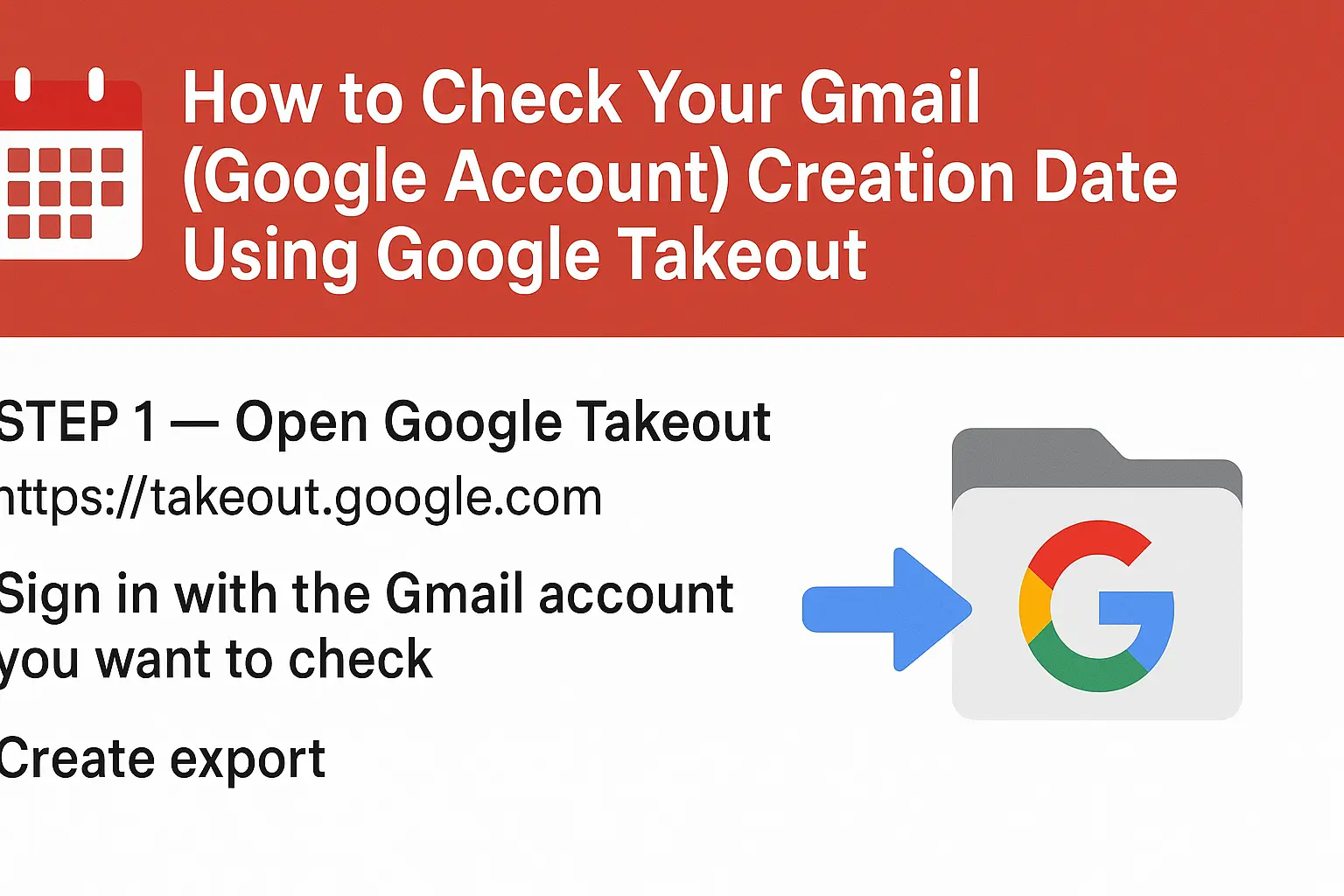
Step 1 — Open Google Takeout
- Go to https://takeout.google.com.
- Sign in with the Gmail account you want to check.
Step 2 — Select Only the Needed Data
- Click “Deselect all” to uncheck everything.
- Scroll down and select “Google Account” (sometimes labeled “Google Account: Data about registration and account activity”).
→ You don’t need to select Gmail or other services — only this one.
Step 3 — Create the Export
- Scroll down and click “Next step.”
- Leave settings as default (e.g.,
.zip, “Export once”). - Click “Create export.”
- Wait a few minutes — you’ll receive an email from Google once your export is ready for download.
Step 4 — Download and Open the Files
- Download the
.zipfile from your Takeout email. - Extract (unzip) the file.
- Inside the Takeout folder, open the “Google Account” folder.
- Look for a file named
SubscriberInfo.html(or something similar likeyourname.SubscriberInfo.html). - Open it in your browser.
Step 5 — Find the Creation Date
- In the HTML file, look for lines containing “Created on”, “Account created”, or “Created:”
- That’s your Gmail (Google Account) creation date and time.
Notes & Tips
- You must log in with the exact account whose creation date you want to check.
- If the “Google Account” option doesn’t appear, log out and try again or wait for the Takeout export email.
- Some accounts may take a few hours before the export file is ready.